
How Scheda perceives thought processing
How Scheda perceives thought processing
Scheda building blocks
Scheda builds on two simple concepts: cards and links:
- Cards hold information, static or dynamic;
- Links connect cards.
Scheda cards
Cards hold the information present in Scheda, independently of their type, all cards have at least:
- a type that determines some of the functionality of a card and in particular its substance, i.e. what can be put into it; each Scheda card type has an associated icon used to indicate a card's type in references to it (file window and links);
- a unique identifier (a UUID), thus can be managed without dependency of their contents or title (the title can be changed any time and will automatically be reflected in any reference to the card);
- a title telling you what the card is about that shows wherever a card is referred to (e.g. the file window);
- file boxes they are filed in (if filed in any); a card can be filed in as many boxes as you see fit;
- attributes: key value pairs (the value is optional) which can help you classify cards; attributes can also be searched for, i.e. show me all cards that have a certain attributes (presence) or a certain attribute with a given value or value range;
- a substance, the "main" part of the card (the text in a text card, the drawing in a sketch card, etc.).
Scheda card types
Scheda (currently) offers these card types:
- Text cards, the most commonly used, holding some rich text;
- Sketch cards that hold a diagram or drawing;
- Reference cards that point to an extern resource (outside Scheda); it holds an URI pointing to the resource and a text are for you to put information about the resource (a description, etc.);
- File boxes (or boxes for short) hold collections of cards and other boxes, allowing you to build hierarchies of cards; they are text cards, too, you can add text to them (between the links to the cards they contain), e.g. titles to separate the cards into sections, or comments on what cards this box contains, etc.; a card can be filed in any number of boxes simultaneously or in none at all;
- Browser cards show the relationship between cards graphically; they contain a query specification (root cards, link types to follow, link direction, and depth) and show dynamically show the cards and their relationships that match the query;
- Search cards hold a query expression like the search field in the file window's All Cards tab; they dynamically list all cards that match the query expression and behave like file boxes in the file window, i.e. they pretend that the matching cards are filed in them (to make the distinction between filed cards and found cards clear, the latter are shown in an italic font); search cards can also be created directly from the All Cards tab in the file browser to allow you saving a query you often use;
- Document cards lay out documents to be assembled from cards; you can write text as in a text card and include links to cards you want to be part of the document; Scheda can then generate you the complete document (following the links in the document card and the linked to cards), ready for export or printing; you can define the rules how each link type is treated (included in-place, and appendix, footnote, etc.); links are preserved and clickable in the export formats that support links (e.g. HTML, PDF) and a table of contents is created for PDF files.
You can freely define your own card attributes and their values (with the exception of a few system defined ones). Scheda keeps track of attributes used and the values for it (so you don't have to). For example, say you have an attribute Status, and you want the values to be draft, finished, or published, you don't have to remember these values, Scheda will suggest them when you set the attribute making it easy to use consistent values. You can manage attributes under the file window's Tools menu menu (see all cards that have a certain attribute, with or without a given value), rename an attribute, or remove it.
Scheda links
Links in Scheda establish relationships between cards, and all links have:
- a direction, i.e. one card points to another, the source and target are distinguished;
- a type indicating the type of relationship between the two cards: See, Comment, Supports, Refutes, and so on.
Scheda automatically establishes backlinks: a link from the target card of a link to the source card; you always see the link on both of its ends, i.e. you see which cards link to a given card. Backlinks are not stored in the file (they are cached, though), the source card of the link is the only source of truth, there is no room for inconsistencies.
A link can either be embedded in the substance of a card (text, drawing, etc.), or it can have the entire card as its origin. Why the distinction? Links within the substance are meant to guide the reader while reading the text: explanation of terms used, references, etc. Links on cards are referring to the topic of the card as a whole, e.g. Comments, Further Reading, etc.
Links always point at cards as a whole, not to a location inside the card substance. As Scheda cannot know where inside a card you want the link to point, you would have to manually create endpoints: this is not only tedious but also error prone—and you don't need it either. Scheda can assemble collections of cards into a document, at which point it will establish links within the complete document automatically, no need for you to define them manually.
Links are shown in Scheda as "blue bubbles", indicating the link type, target card type (with an icon), target card title, and in the case of reference cards, a direct link to the external source (without having to make the detour of opening the reference card):
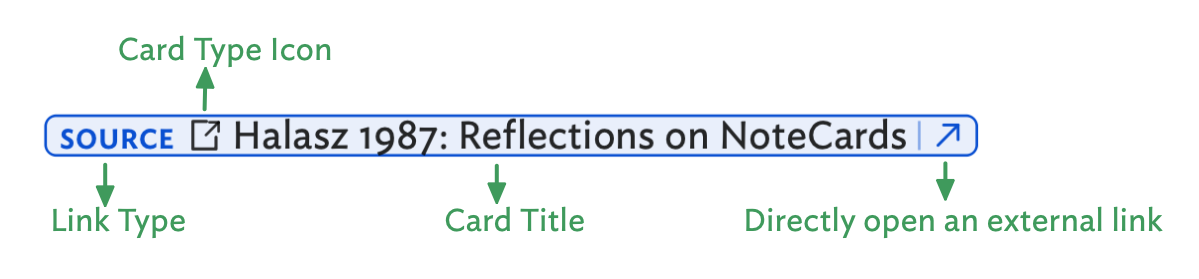
Wherever in Scheda you see such a blue bubble, you can click on it and it will open (or bring to the front) the target card's window.
Links can be added to the substance of a card by pressing ⌘L (⌃L on Windows or Linux) or selecting the Link icon in the card's toolbar. This opens a pop-up where you can: search for and select the target card or create a new one and specify the link type from the already existing link types or create a new link type. To delete an in-substance link, simply delete it with like you delete any other text. The links can also be cut/copied/pasted like any other text. Note that inserting links is not limited to text cards, sketch cards, for example, can include links as well, browser search cards actually consist of nothing but links, etc.
At the bottom of each cards, at the right side of the Card links field, you can use the Add button to add a card emanating from the card as a whole, giving you the same pop-up and options as with in-substance links, and remove links you don't want any longer.
Scheda keeps track of all link types used in a file (so you don't have to) and in the file window's Tools menu you can see all the defined links, rename them, or remove them.
Thought processing areas
Scheda observes four thought processing areas:
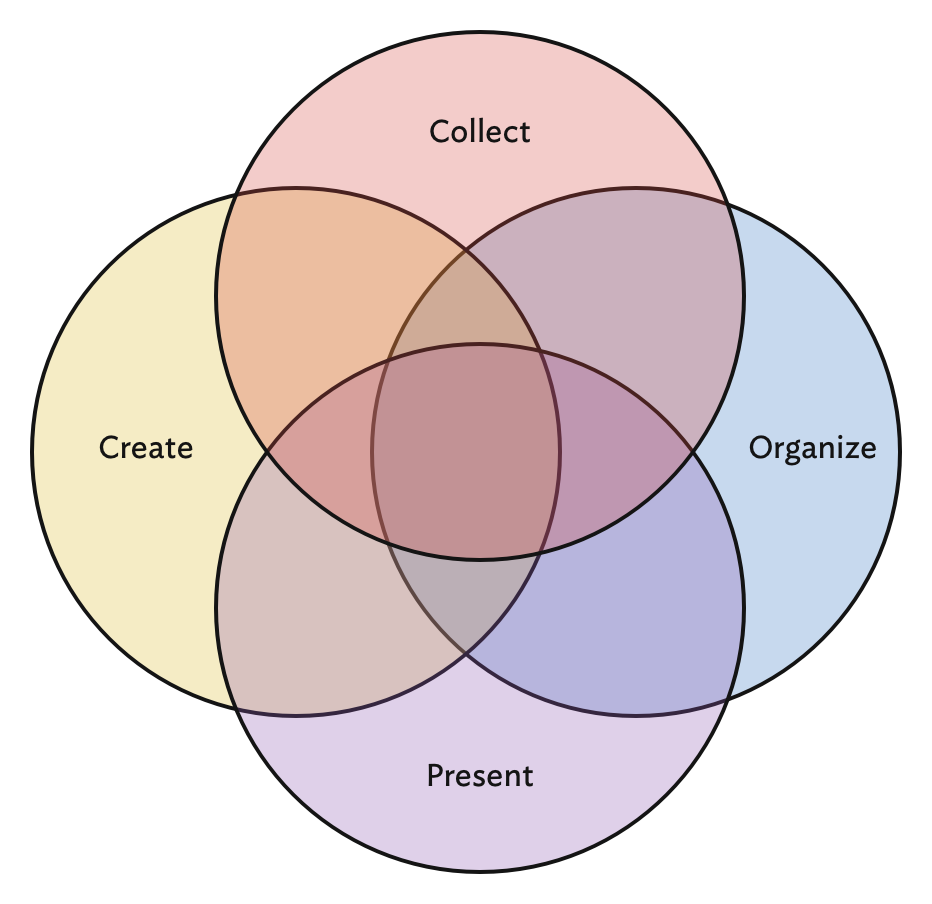
As the diagram tries to show, there is overlap between these areas, and they are not visited in a strict sequence, but rather visited and revisited throughout your thought process.
Collect thoughts and information
Collect thoughts and information. This is the "acquisition" phase, so to speak: gather information, your own thoughts and ideas, contributions from your family, friends, colleagues, reviewers, online information, books, papers, etc. Make an individual card for each item, don't put them all in a single card—or if you do, split them up into individual cards later on, large cards that contain many pieces of information or thoughts severely limit your flexibility to relate and arrange information. But as always with Scheda, the decision is yours and yours alone, if that is your preferred way to work, Scheda will not put up any hurdles or try to force you into a different approach.
If you spot connections, relationships, etc. between these cards, add them right away, spotted and added is always better than spotted and forgotten. Add comment cards linked to them if you want to clarify, have questions, further ideas, etc.
The principal Scheda card types you are likely working with in this area:
- Text cards for rich text notes
- Sketch cards for drawings and sketches
- Reference cards for references to external resources
Don't forget about the reference cards: if a card comes from somewhere else than your own brain, add a reference card pointing to the source. Not only does that help you finding that information again, or related information around that source, but it may also be a requirement, e.g. for an academic paper (which expects you to list all your sources). You can also include direct links into your cards, instead of writing reference cards, but the latter are usually much more helpful: you can link to them (i.e. multiple cards can share a reference instead of each one having the direct link), it gives you a place to describe the source, e.g. an abstract of a paper, a summary of a book (which you can then use with Scheda's full text search).
Create a network and new ideas, gain insights
This is probably the heart and soul of Scheda: it is not ment to merely store information, but to make something out of it: gain insights, leran, create a network of ideas and from it new ideas.
Central to this are links, of course: link your collected ideas together, make extensive use of link types to indicate how things relate, use different views on your information, etc.
Scheda helps you in this process with two card types that allow you inspecting your information;
- Browser cards let you visualize your information network.
- Search cards (or the All Cards tab in the file window) let you find related information you might not have been aware of or to just drill down on aspects you are interested in.
As always with Scheda, you don't have to keep track yourself of whatever you discover: add new cards, comments, notes, etc. as you go, and link them to what is already there.
Browser cards {#browser-cards}
Browser cards let you visualize your network of cards. A browser card holds a query and displays its result graphically. Conceptually, a browser takes a set of cards and link types to follow and shows you all the cards it can reach by these two. The query consists of:
- Root cards, the cards the browser should start from
- Link types, the link types it should follow
- Direction tells it whether to look at incoming or outgoing links, or both
- Depths limits how far it should look (the distance from the cards shown to the root cards, the number of successive links to follow).
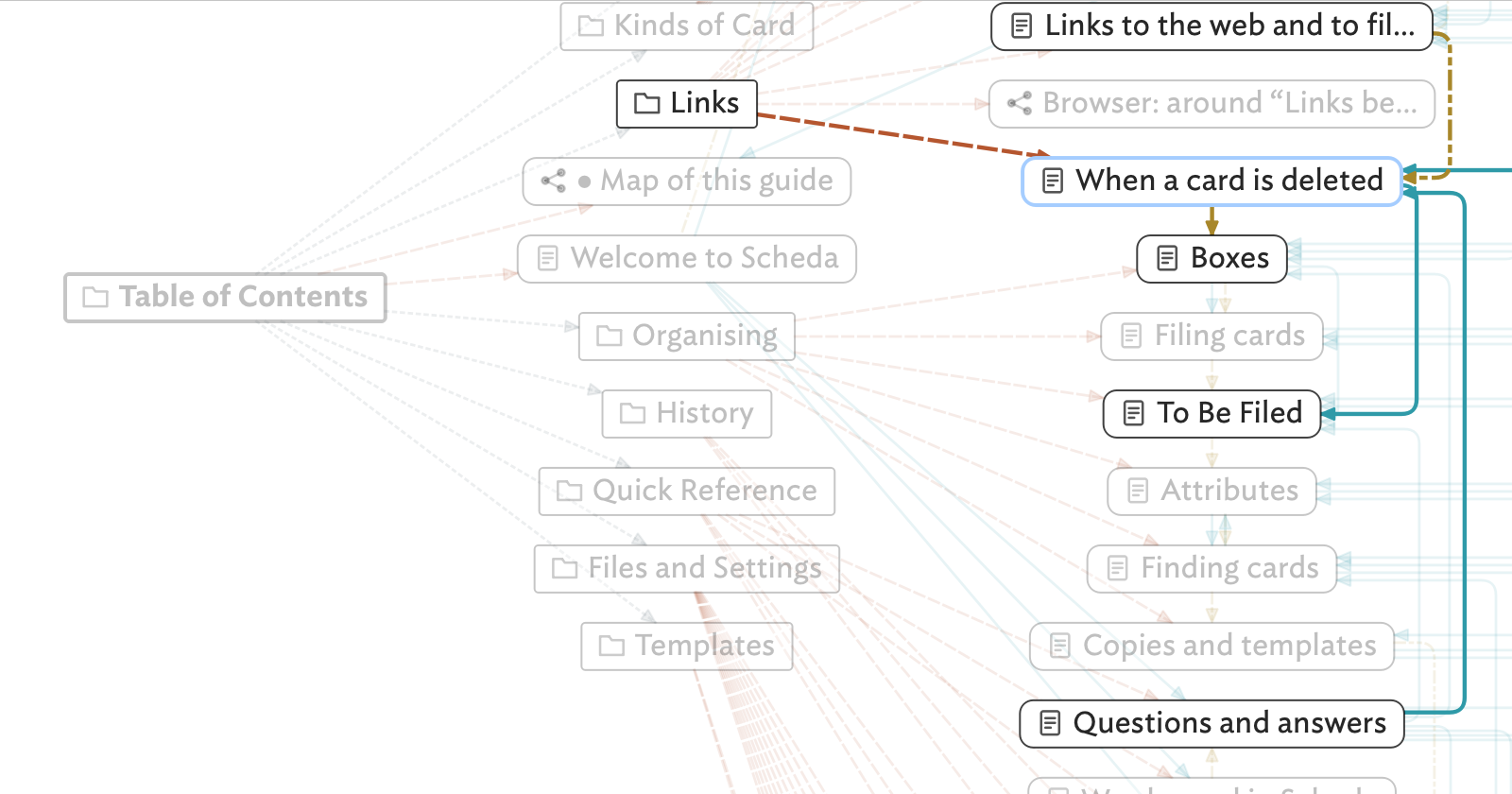
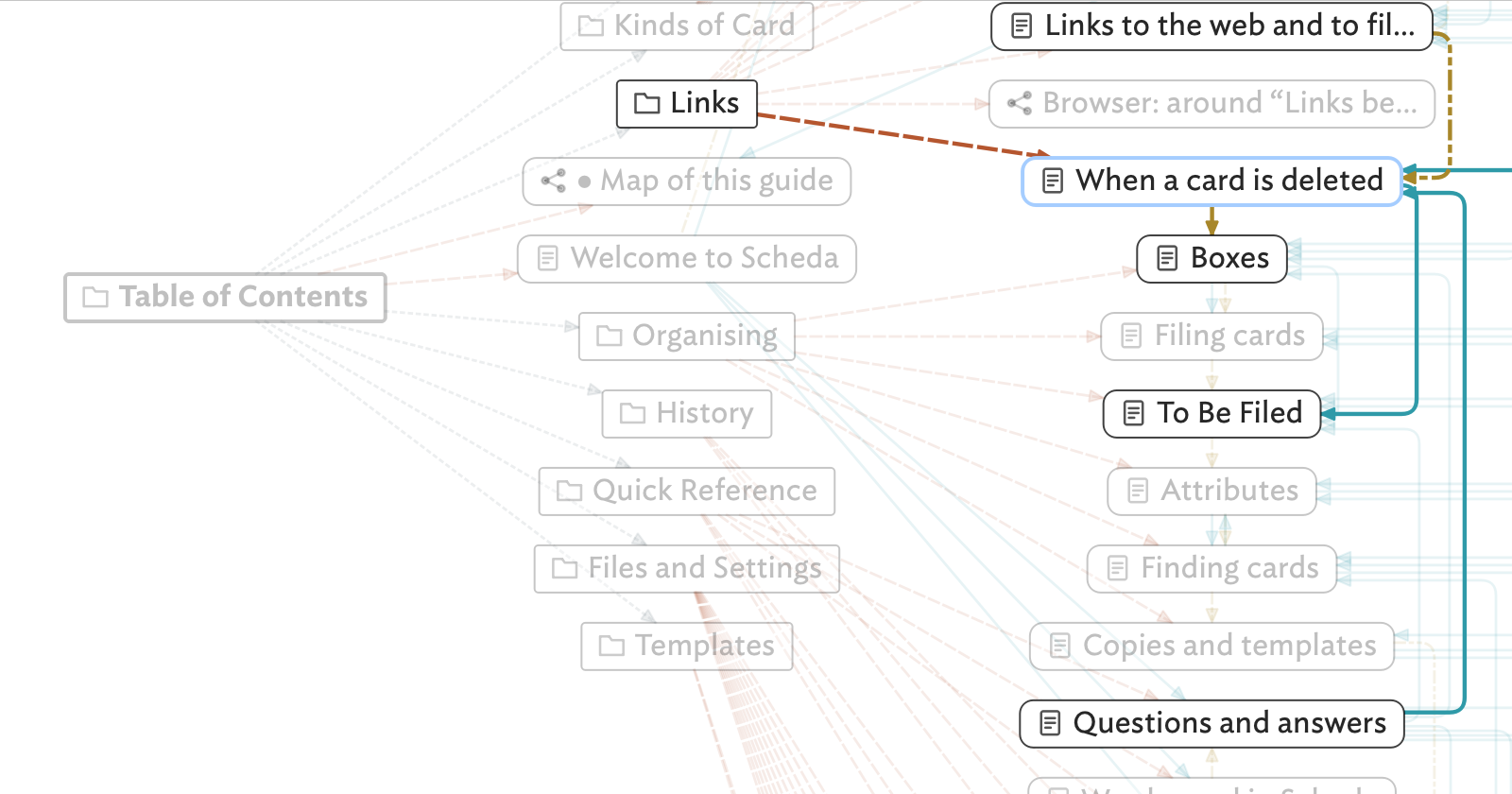
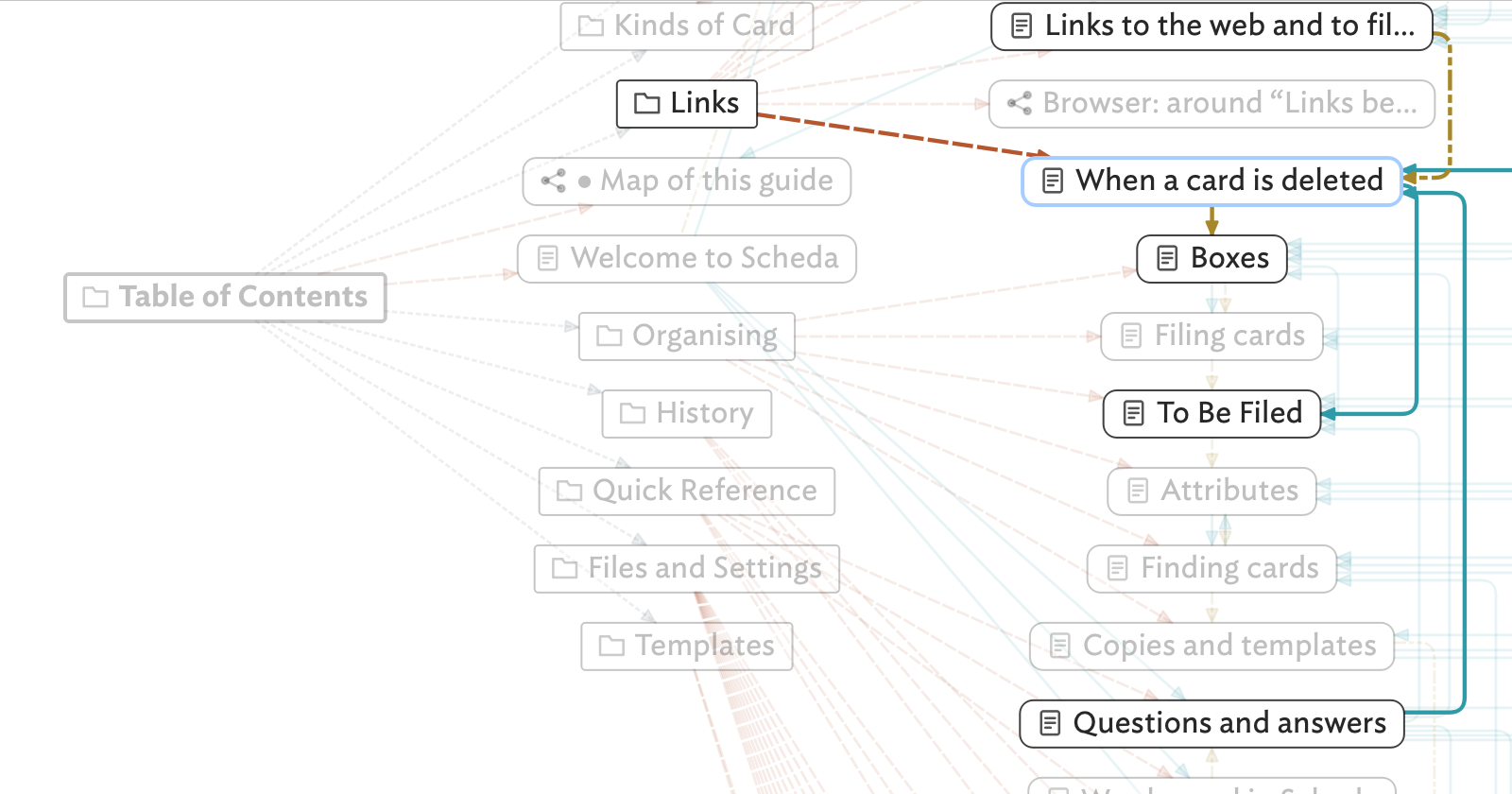
This is a screenshot of a browser window as it showed while writing this article:
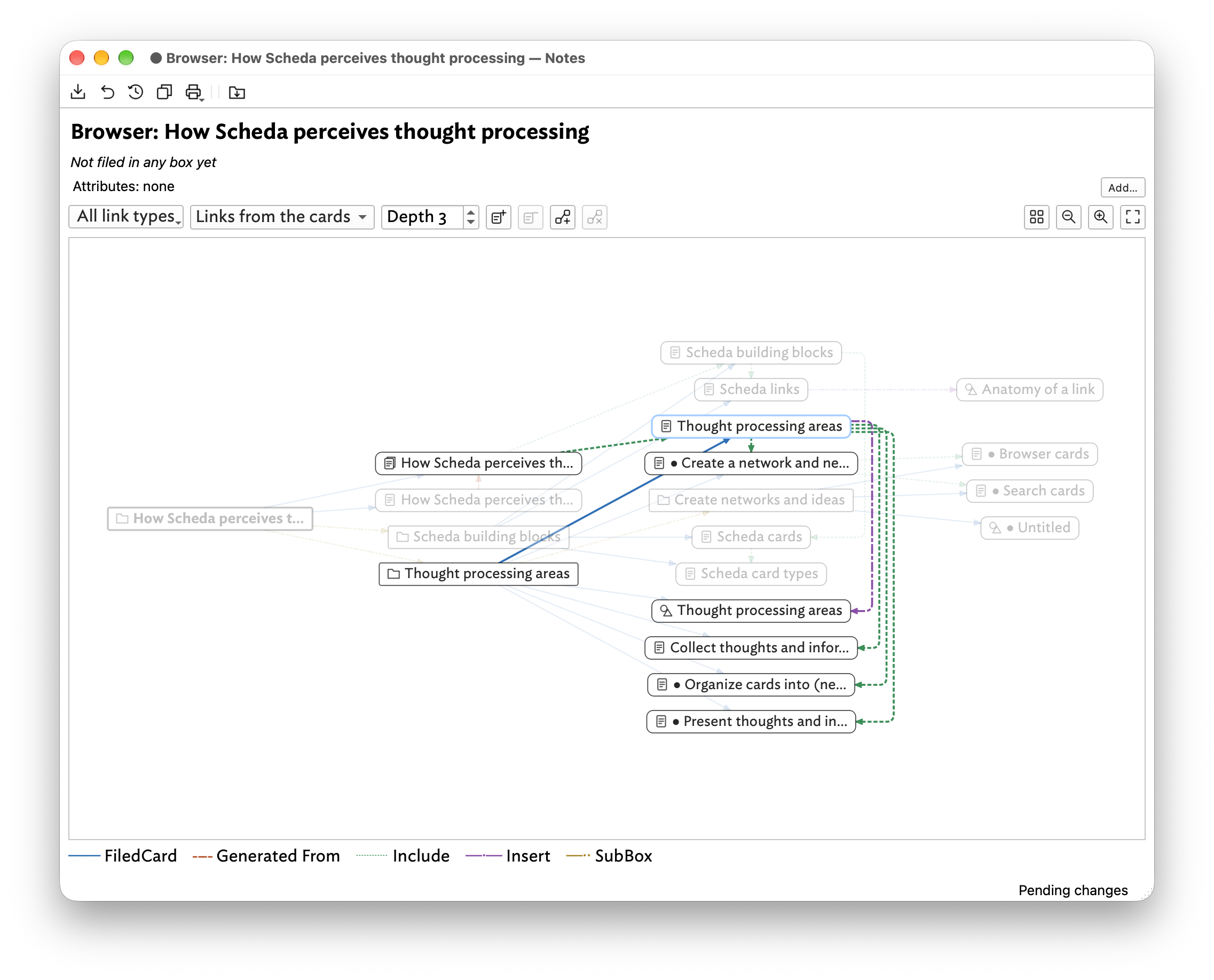
Below the card metadata, you see the query specification:
- Follow all link types
- Only look at links emanating from cards
- Gather cards up to three hops away from the root cards.
As this view can get very dense for heavily linked card sets (and very generic queries), you can hoover with your mouse over cards and they will be highlighted together with their links and the target cards of these. Clicking on a card makes this highlighting stick, so you can scroll around without loosing it. While a card is marked, hovering over another card will still trigger highlighting it the same way, moving out of the card reverts to the sticky card, or the global view if there is none.
Besides this basic functionality, a browser card also allows you to:
- Move cards around, laying them out differently to your taste; even though the contents of the card are generated and updated by Scheda, if you save the browser card, the positions of cards you changed will persist, i.e. next time you open the card, the moved cards (if they are still part of the picture) will be kept where you put them;
- Add (or remove) start cards: you can look at the network from several start cards together, for example, to see how two parts of your network connect or overlap;
- Add (or remove) links between cards;
- Zoom in and out, and make the entire graph fit the window;
- Clean up the graph (freshly layout the cards), either because you moved them or because you added or removed links.
You can also change the query parameters at any time and Scheda will adjust the cards shown correspondingly. Saving the card stores but the query parameters (and if cards have been moved, their location).
Mentioned in references
in the card links section at the bottom of card windows (underneath the Card links and Linked from fields), Scheda automatically adds a Mentioned in field (if there is any cards to be shown). Scheda lists cards that contain the title of the current card but without a link to it, in other words, it shows you card relationships you might have missed, not been aware of. As with any link, clicking on it opens the respective card. A right button menu on a card in this field lets you add a link to it.
Search cards
In the file window's All Cards tab you can search for cards with complex search terms. You can store such search terms in search cards, so you don't have to retype them over and over again.
A search card holds but such a search query, and automatically populates its substance with a list of matching cards. Furthermore, search cards appear in the file windows akin to file boxes, listing underneath them all the matching cards. To make clear that these are searched for cards and not cards filed in the search cards, the titles of the matches are rendered in italics.
As an example, a search card I use to find "island" cards, cards that are not linked with any other card (in either direction). The query is:
-links: -kind: box -kind: browser -in: Templates -IgnoreIsland:
Spelled out:
-links:means that the card does not have any links; alternatively, one could, for example, set another minimum with-links: < 3would list any card that has less than three links;-kind: box -kind: browserexcludes file boxes and browser cards;-in: Templatesexcludes cards filed under the Templates box (directly or indirectly in a nested box);-IgnoreIsland:excludes cards that have the IgnoreIsland attribute set; this allows me to filter cards that I am ok with they are islands, I don't want them to clutter the list.
The list of cards matching the search query is dynamic, i.e. it is always up to date with the current state of affairs. The cards (in the search card and the file window) can be manipulated like any other card, though: you can open them, or you can drag them to file them, allowing you to persist the selection. For example, you can search for all cards that contain a certain string and then file them all in a box; from there you could arrange them in sub-boxes, etc.
Organize cards into (nested) contexts
Scheda handles two aspects of your knowledge network: relationships between cards and contexts.
As an example, assume you are very interested in France and have collected a thousand cards on it: Flora, fauna, society, geography, history, economics, you name it. Some of these cards have relationships, for example, some geographic topics may have direct connections to economic ones, it makes perfect sense to connect such cards directly. But what about you want to focus on France's economy? How do you get a view of all the cards that are related to it? So far, you would have two options:
- Create some Economy of France card and link related cards to it;
- Add a card attribute in the lines of Context and set it to Economy of France.
Both work, of course, but both have significant drawbacks:
- The network of linked cards is a flat graph; if you wanted to subdivide Economy of France into several sub-topics, you would have to create additional cards to link to; this eventually leads to a jungle of cards that do not necessarily have any content of their own (Economy of France is likely an empty card, its "contents" come from the linked cards);
- Say, you are also interested in Spain: you would have to rebuild a corresponding set of empty cards for Spain; but more gravely, this gives you two independent hierarchies, one for France and one for Spain; what if you wanted to look at the economy of Europe in general? you would need to either collect all the individual attributes or create even more empty cards to tie them together.
What we are looking for is to define contexts, views on the network, topics. The linking and card attributes make it awkward to map or model this: empty cards as references and no nesting. That is where file boxes come in: they allow you to group cards by whatever criteria you choose, form nested contexts.
Consider the above example of France and Spain: you can create file boxes that give you different views on the relevant cards:
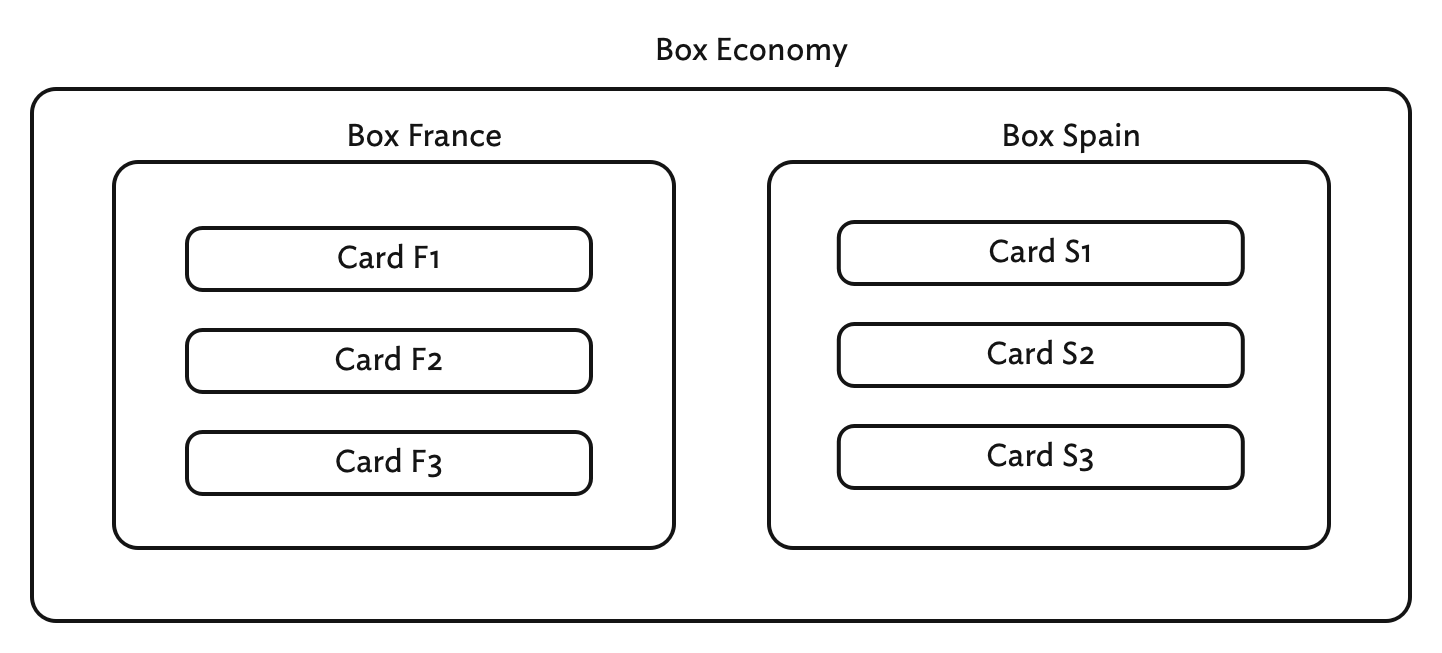
But more importantly, you can have at the same time:
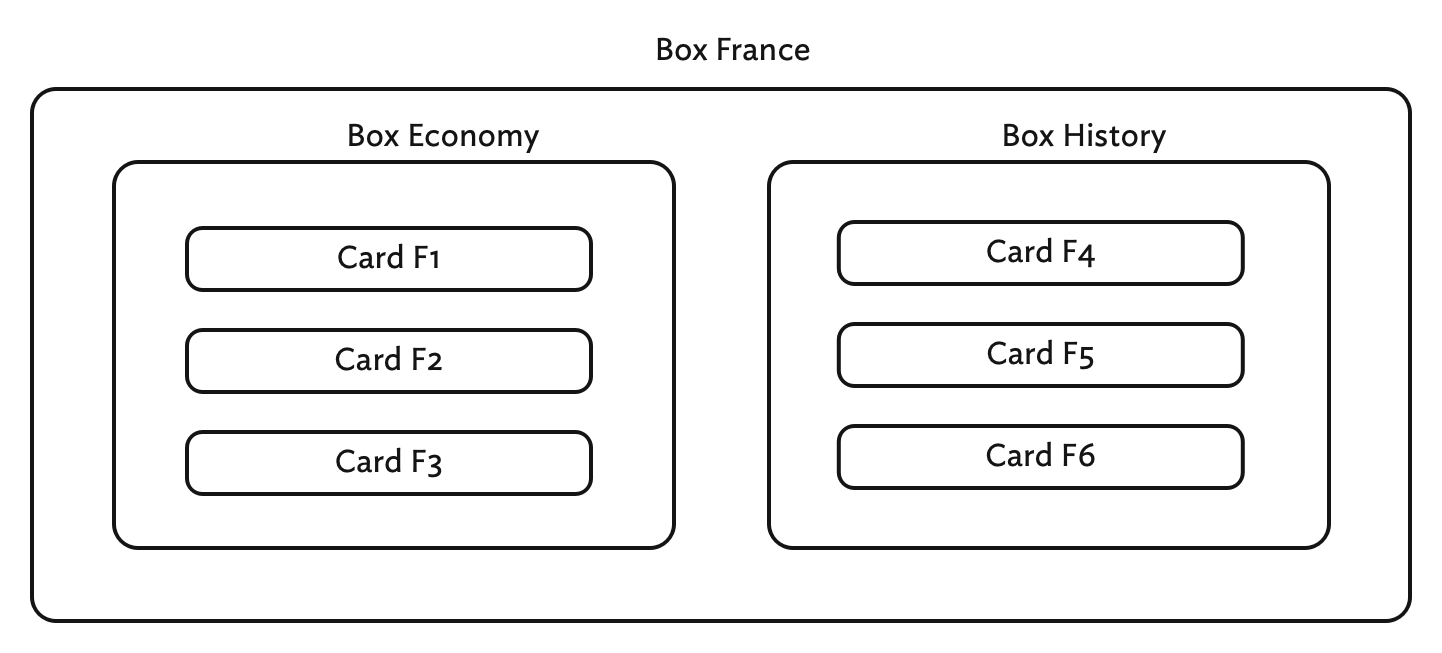
This gives you two different contexts to look at your cards: by topic then country or by country then topic. Note that the respective cards are the same ones, only filed in different boxes (remember, a card can be filed in as many boxes as you like). This allows you to form contexts, areas of focus, different views on your cards.
This is a way you can organize your cards, a structural access path to your network.
Unlike many other tools and applications that force you into working out a hierarchy before adding any information, this is completely optional in Scheda. If you so like, you can leave all your cards un-filed, you are not forced into coming up with a hierarchy before you actually want or need one. Only then, once you see suitable ways to organize your cards, once you want such organization, you do so. You do not have to plan a structure for years to come, and nothing is ever set in stone: should a structure you built turn out to be inadequate or awkward later on, it is straightforward and easy to refactor, rearranging cards (including boxes) is simple in Scheda.
In short: contexts are easiest modelled with hierarchies of file boxes, they give you the flexibility, easy of refactoring, and diversity (several views onto the same set of cards).
Present thoughts and insights in documents
At some point you might want to share information and thoughts you gathered, insights gained, things learned. Of course, you can share your respective cards, but that requires the receiver to use Scheda. More often you will want to write a document on your thoughts.
Scheda helps you there, too. You don't have to go to a document editor outside of Scheda and painfully copy/paste information over. Scheda has document cards for this purpose. At their core, they are text cards, but with a twist: you can write text in them and include links to cards you want to refer to at a given location in your final document. From these "templates", Scheda can generate a complete document by replacing your card links with the actual card contents. The generated document is a Scheda card you can export or print like any other card. If you have specific requirements on the document format (one that Scheda does not handle itself, like a Word document, LaTeX, etc.), you can export the document as Markdown and convert it to most any other format using Pandoc.
Document cards employ a ruleset that can be individually tailored. This ruleset defines how the generation of the document should treat each link type. For each link type in your Scheda file you can replace the link with:
- the target card's contents (with or without title);
- an appendix or footnote containing the target card's contents
- the target card's title only
- nothing, i.e. ignore the link
When generating a document from a document card, Scheda automatically adjusts heading levels of linked cards: a card included in another card gets its top level heading one below the enclosing cards current heading level; you don't have to worry about where a card will be included in a document (or various documents) to determine the heading level, you can always just start with a heading 1.
The generated document, when exported to a format that supports links, is fully linked, i.e. links in the cards are clickable links in the generated document (references to cards/sections, footnotes, appendices, references, etc.). For exported PDF files, a proper table of contents is also created in the PDF file.
This article was entirely written in Scheda and then generated with a single button click from this document card:
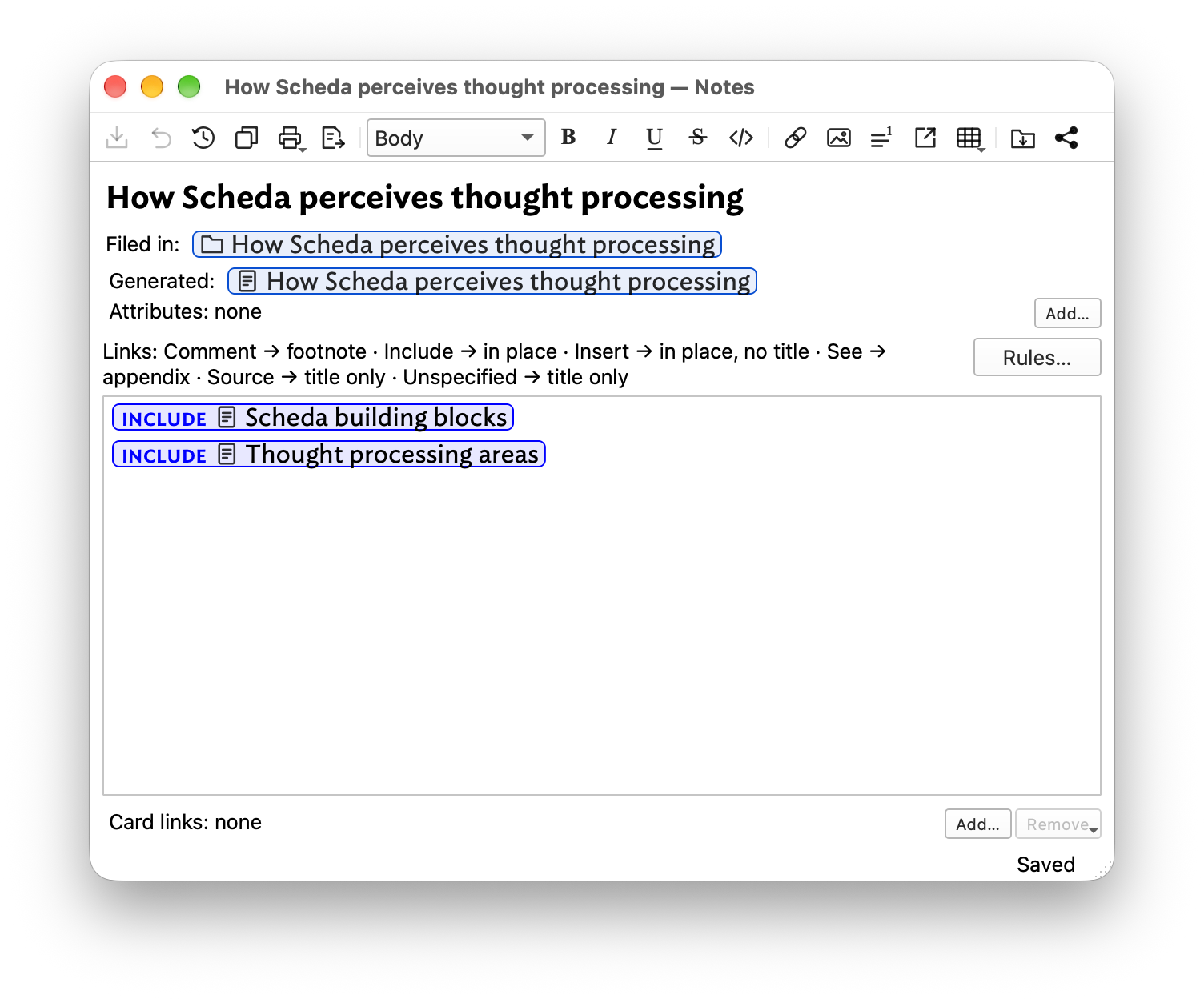
As you can see, the document card does not mention each and every card that makes up the document, but the rules are applied recursively to each included card and theirs.
Comments
Join the discussionNo comments yet. Be the first to comment.